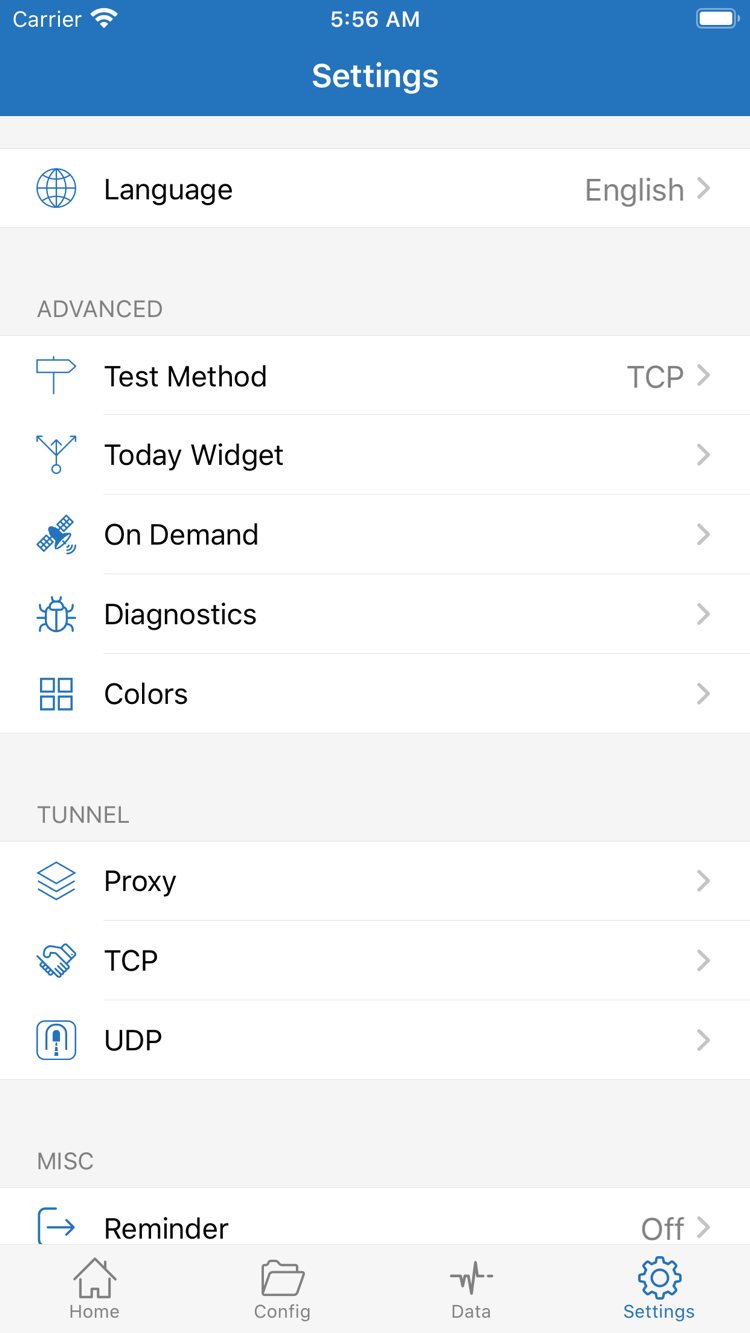
Add Server / Subscribe: Add Your Existing Details
Open Shadowrocket and stay on Home. The SERVER section below lists servers you've added. If this is your first time, add a server before using the connection switch at the top. Have your own subscription link or a complete set of server details ready. Each calls for a different setup method; you don't need to use both to get started.
Use an Existing Subscription Link
On Home, tap Add Server. On the add screen, open Type and choose Subscribe. Enter your complete subscription link in the URL field, checking that the beginning, end, and query parameters are intact, then save. Return to Home and wait for the subscription to load. Once the subscription group and its server entries appear, select a server to continue.
When pasting, include only the link itself—not surrounding instructions, quotation marks, or line breaks from a message. Subscription links may contain access credentials, so treat them as sensitive and keep them out of public screenshots. A successful import means the list was read; it doesn't guarantee that every server in it can connect. If the list is empty, troubleshoot the import first rather than repeatedly changing Global Routing.
Enter Server Details Manually
If you have details for a single server, open Add Server and choose the Type that matches its protocol, such as Shadowsocks, VMess, VLESS, or Trojan. Fill in the fields shown for that Type, such as Host, Port, and Password. Choose Method only for Types that require it, using the value in your server details. Fields vary by protocol; don't substitute a different Type just because its name looks similar.
For TLS, transport, and other optional fields, follow the details you have rather than guessing. If you were given a QR code, use Scan QR Code to import it and review the result. Import from Cloud JSON is only for data compatible with that option; it isn't a general subscription importer. Save, return to Home, confirm the server appears, and select it. This adds your details to the app; the next step determines how traffic is handled.
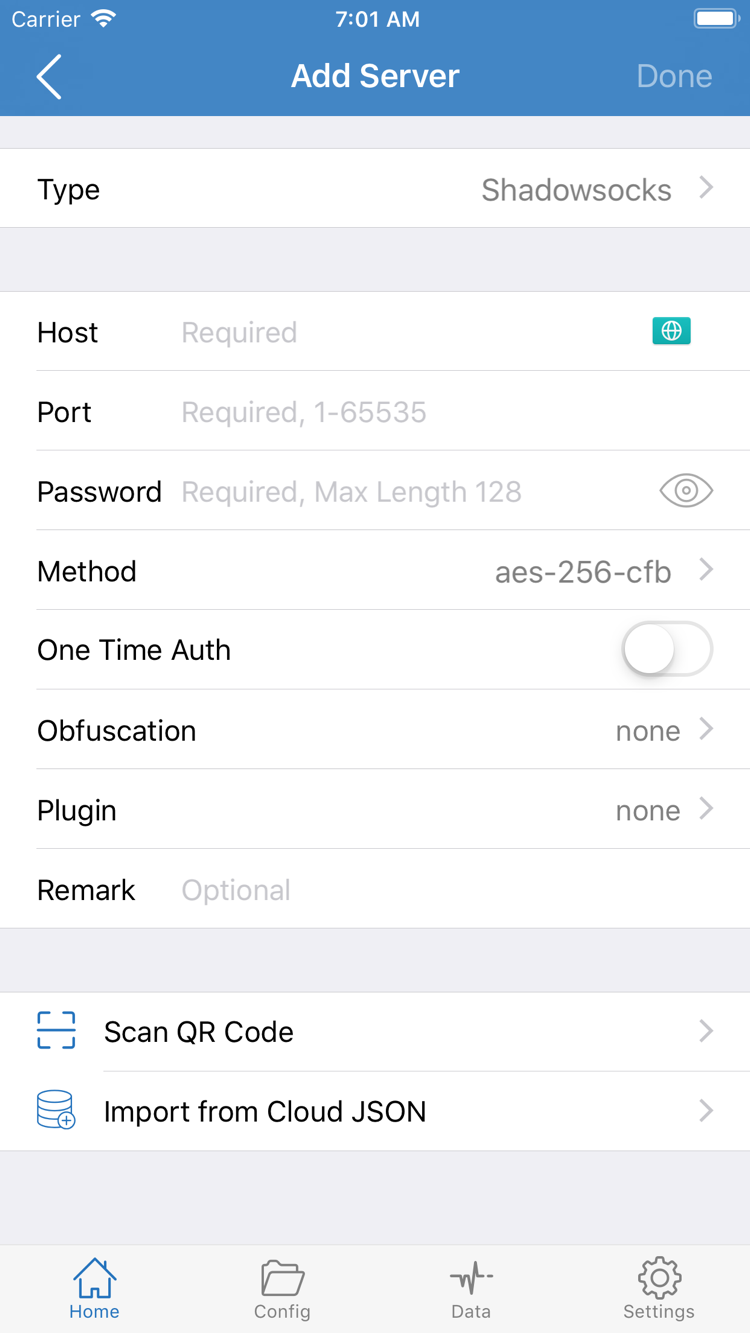
Global Routing: Choose How Traffic Is Handled
Once you've added a server, tap Global Routing on Home. This setting controls how requests are handled; it doesn't add a server or refresh a subscription. Before your first test, note the current selection and choose the mode that fits the test. After changing it, return to Home and check the displayed selection before continuing.
Config / Proxy / Direct
Config uses the active configuration and its rules to decide how each request is handled. Choose it for rule-based routing. Beforehand, open Config to confirm which configuration is active and check its rules and policy references. A server list imported with Subscribe and the rules in Config are separate; a successful subscription import doesn't mean a routing configuration is ready.
Proxy routes traffic through the proxy. For an initial test, it can reduce interference from rule-based routing and help you check whether the selected proxy path works. It won't fix incorrect server details or guarantee that every request from every app follows the same path. If access still fails after switching, check the server and your underlying network rather than assuming the rules are at fault.
Direct uses a direct connection, which is useful for checking whether the device's current network works. It doesn't make the selected server faster. If a page opens with Direct, that only shows the page is reachable without the proxy; it doesn't confirm that the proxy connection works. When you're done comparing, restore the mode you actually need.
Check Config First; Avoid Bulk Changes
In Config, the configuration editor has sections such as General, Rule, Hosts, URL Rewrite, and HTTPS Decryption. To get started, confirm the selected configuration and the order of the rules in Rule; you don't need to enable or edit every section. Add Rule adds a rule, but adding rules without a clear reason can change matching results. HTTPS Decryption is outside the scope of this basic connection walkthrough.
The example below illustrates rule syntax; it isn't a complete configuration and doesn't need to be copied. Policies referenced by rules must exist in the active configuration. If you're not sure how rules map to policies, first verify a single connection path, then read the FAQ guide to routing modes and configurations. Don't change DNS, rules, and transport settings all at once before your first connection.
DOMAIN-SUFFIX,example.com,PROXY
GEOIP,CN,DIRECT
FINAL,PROXY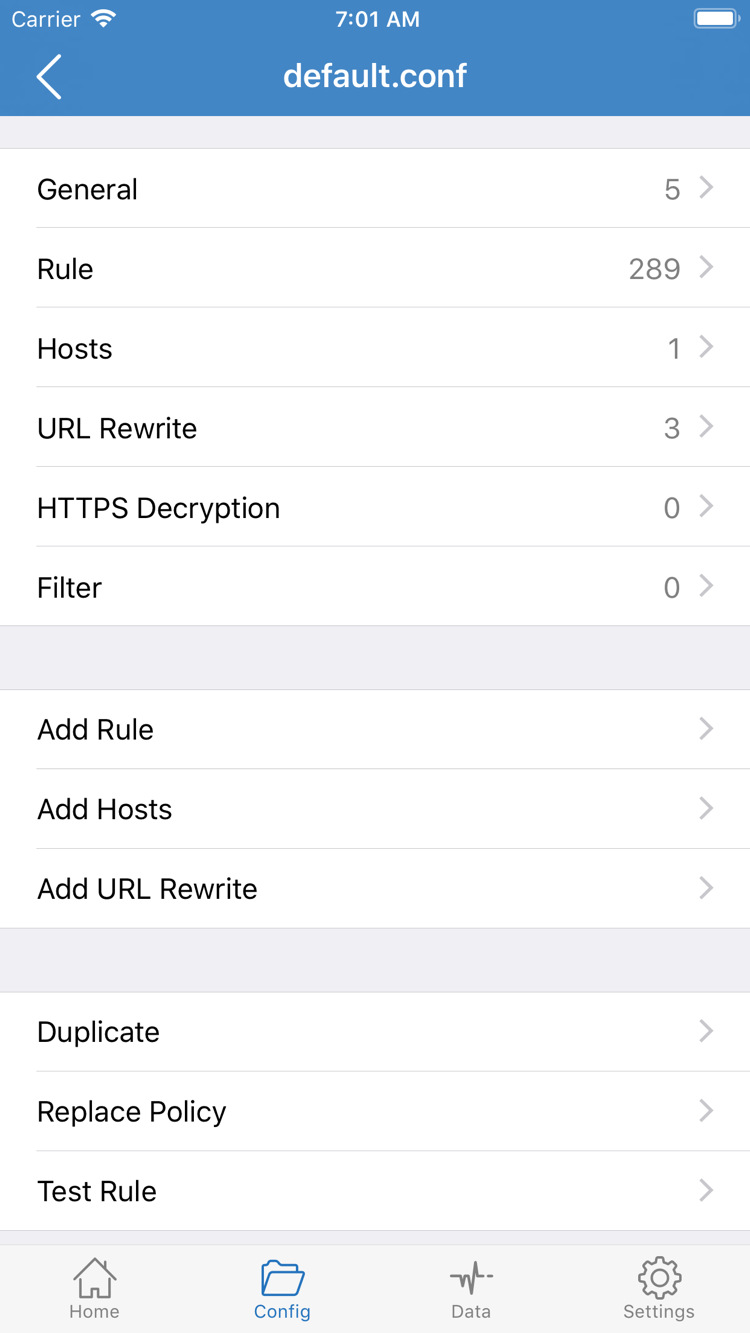
Home: Turn On the Connection and Approve the VPN Configuration
Return to Home. Confirm that the server you want is selected under SERVER, then check that Global Routing matches your choice from the previous step. If the subscription contains multiple entries, check the selected server itself—not just the group name—so you don't test one entry and connect through another.
Next, turn on the connection switch at the top of Home beside Not Connected. The first time you connect, the system may ask you to approve adding a VPN configuration. This lets Shadowrocket create the required network configuration on your device. Check that Shadowrocket is the app making the request, follow the prompts, and complete any required device authentication. Without approval, the switch may not connect; that doesn't necessarily mean the server details are wrong.
After approving, return to Shadowrocket and check whether the status at the top has changed from Not Connected to connected. If the approval process sent the app to the background, return to Home and check the final status instead of rapidly tapping the switch. If you previously denied approval, try connecting again and follow the system prompts. On a managed device, check whether VPN configuration is permitted by your device administrator.
A connected status means the app has established a connection, but you still need to verify access. The VPN status indicator alone doesn't prove that a website will open or that every rule is matching as expected. Keep the current server, mode, and configuration unchanged for now. Changing several settings after connecting makes it harder to identify the cause if a problem appears.
The iPad layout may differ from the screenshots, but check Home, SERVER, Global Routing, and the connection switch at the top in that order. If the connection resumes automatically after closing the app, note what happened and check On Demand later; repeatedly toggling the switch won't tell you whether the app is behaving unexpectedly. At this stage, you should be able to identify the selected server, the routing mode, and the status shown at the top.
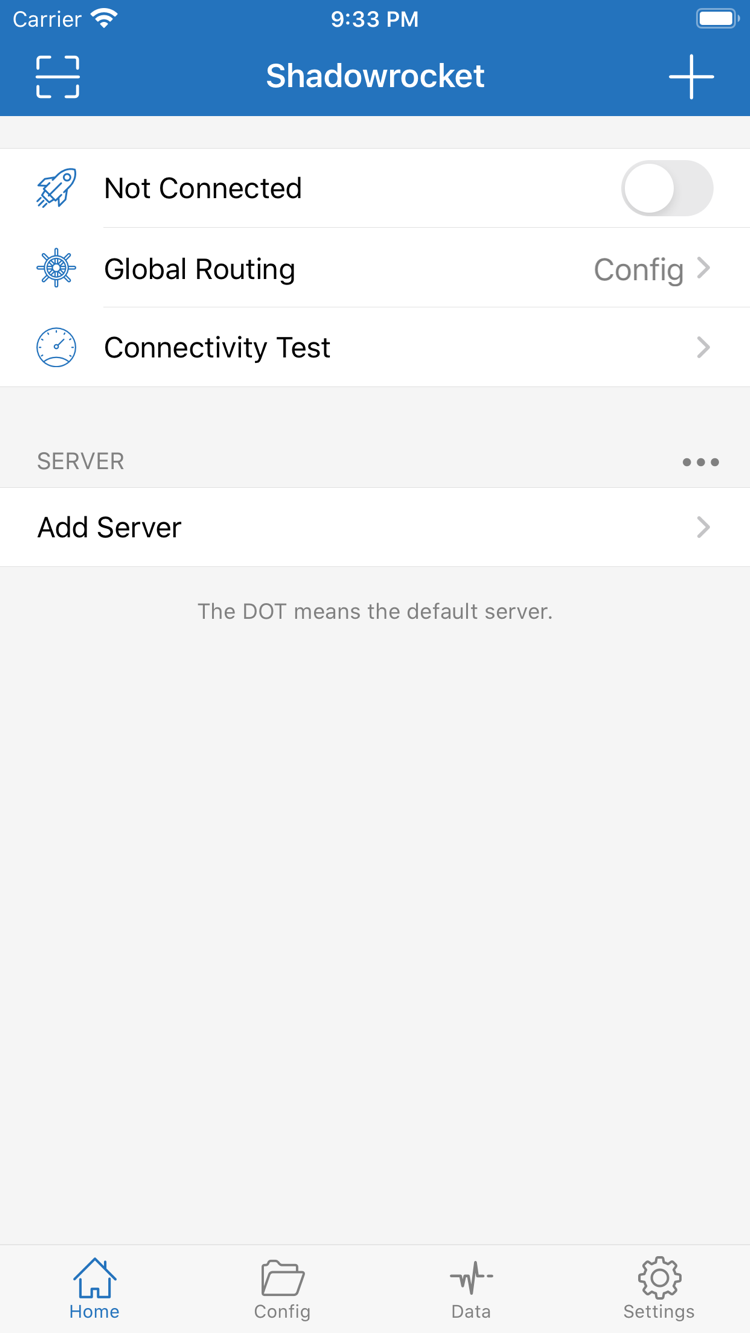
Connectivity Test: Check That the Connection Works
After connecting, run Connectivity Test on Home and wait for it to finish. Review the result for the selected server. The test shows reachability using a particular test method; it doesn't reflect all real-world network activity. A response time doesn't mean every destination is reachable, and a timeout should be considered alongside Test Method and actual access. Don't judge the configuration by a single number.
Next, open a browser and visit a specific page you actually need to use. Refresh a regular page first, then try the destination that previously failed. Cached content alone doesn't confirm that a new request succeeded; load the page again or refresh it. Keep the server and mode unchanged, and note whether all pages fail or just one. That distinction helps determine whether to investigate the connection itself or the rules, name resolution, or destination service.
With Config, being able to open a page doesn't necessarily mean its traffic went through the proxy. If request logs are available in the app, check the rule and policy result for the destination domain, distinguishing PROXY, DIRECT, and REJECT. Traffic changes in Data can provide a useful clue, but traffic counts alone don't reveal the full route for a specific destination. If you're unsure how to interpret the logs, keep the results and don't change rules just to make the count increase.
For a comparison, change only one Global Routing setting at a time. For example, keep the same network and server, temporarily switch from Config to Proxy, reconnect, and visit the same destination. If the issue occurs only with Config, check the active configuration first. To compare with your underlying network using Direct, note whether that destination is suitable for a direct-connection test. Restore your original settings when done; don't leave a temporary diagnostic mode in place as your final configuration.
Settings: Troubleshoot by Where the Failure Occurs
Before troubleshooting, keep your current configuration and note the selected server, Global Routing mode, network type, and exact message. Settings includes Test Method, On Demand, Diagnostics, Proxy, TCP, and UDP, but you don't need to enable or check everything. For your first troubleshooting pass, change only the setting related to the symptom, then repeat the same test after each change.
Subscription Didn't Import or the List Is Empty
First, make sure Type is set to Subscribe and the link isn't incomplete or pasted with extra spaces or instructions. Then check that the device's underlying network can access the internet. If the subscription returns unusable content, check the status and validity of your own subscription. Don't enter a subscription link as the Host for a regular server, and don't keep testing the connection before any server appears in the list. The failure is still at the import stage, so Global Routing is usually not the first thing to check.
The Switch Won't Connect or Disconnects Quickly
First confirm that you've approved the system VPN configuration, then check that a server is selected and its details are complete. If another VPN configuration is in use on the device, check the current network configuration before changing anything else. If the connection comes back automatically after you disconnect it, check the On Demand conditions in Settings. Pause a relevant condition only if needed for comparison, then restore your original settings afterward.
Test Times Out or There's No Access After Connecting
First confirm that the device has internet access when disconnected, then check Host, Port, Type, and authentication fields. Test Method in Settings affects how the test runs. Changing it may help distinguish a test-method issue from an access issue, but it won't fix incorrect server details. If you have multiple servers, compare another entry while keeping other conditions unchanged. Avoid updating the subscription, editing rules, and switching networks all at once.
Only Some Pages, Apps, or Networks Have Problems
If Proxy works but Config doesn't, check the Rule matching the destination and the resulting policy. If the same server fails only on a particular network, note what changes when you switch networks. Issues involving DNS, UDP, persistent connections, or protocol-specific fields may require more detailed diagnosis; avoid trial and error by changing Proxy, TCP, and UDP settings in bulk. Restoring the last working configuration is usually easier to troubleshoot than layering on more changes.
Before saving Diagnostics information, check it for subscription links, server addresses, and authentication details, and remove anything sensitive before sharing. Write down where the failure occurs, the message shown, what you changed, and whether you can restore the previous behavior. Then read the symptom-based troubleshooting guide. For quick answers about interface terms and basic operations, see the FAQ. This tutorial covers reproducing a stable connection and successful access; move on to advanced settings only after confirming the basic steps.