Download Shadowrocket
App Store Purchase Guide
- Developer: Shadow Launch Technology Limited
- App ID: 932747118
- $2.99 one-time purchase
- One purchase for iPhone and iPad
The App Store is the only place to get Shadowrocket. First check your storefront, then verify the developer, official icon, and app ID. Refer to the App Store listing for the price, system requirements, and purchase compatibility.
Buying the app ≠ buying a service plan. After purchasing, import your own existing subscription or server details.
Check your storefront and Apple ID
First confirm the app is available in your storefront, then troubleshoot purchase or device issues.
Shadowrocket is a paid client for Apple platforms, available only through the App Store. It isn't available on the mainland China storefront, so if it doesn't appear in search, check your storefront region before trying different search terms. The button on this page opens the product listing for app ID 932747118. Whether you can complete a purchase depends on your current storefront, account status, and device compatibility.
The country or region associated with your Apple ID determines which storefront you see. Your device's display language, current network, and storefront account region are separate settings; changing your device language to English won't switch the App Store storefront. Also distinguish your primary device account from the account used for Media & Purchases. The latter is the key account to check for this purchase.
How to check your country or region
- Open Settings and tap your Apple ID account at the top.
- Tap Media & Purchases, open the account details, and authenticate if prompted.
- Find Country/Region and check the current setting before deciding whether to make any changes.
Labels and menu layouts may vary slightly by system version, so follow what appears on your device. To change your region, go to Settings → Apple ID → Media & Purchases → Country/Region, then review the payment details, balance, and account requirements shown. This section explains where to find the setting; it doesn't guarantee that every account can change regions. Avoid switching regions repeatedly without understanding the consequences.
If you see a message such as “This app is not available in your country or region,” note the exact wording, then check the settings above. If you can open the product page but payment fails, review the payment or account message shown by the store. Store availability, a completed transaction, and device installation are separate steps; not every failure is an app issue.
Developer, official icon, and app ID
Verify all three details. Screenshots can help you recognize the interface, but they don't replace checking the App Store listing.
Shadow Launch Technology Limitedid932747118
Search results may include apps with the same or similar names, so don't rely on “Shadowrocket” alone to identify the right app. Open the product page and confirm the developer is Shadow Launch Technology Limited, then compare the icon with the official one shown here: a blue-purple outlined rocket on a white background. If the name looks right but the developer doesn't match, stop and verify the listing before proceeding.
The third check is app ID 932747118. The App Store link on this page ends in id932747118, which is a more reliable identifier than a search result's position. In the App Store app, you can use the product page's share option to view the link and its ID. Don't mistake another app from the developer, or a similarly named listing, for Shadowrocket.
Check these details in order: confirm the developer name, match the icon, verify the app ID in the link, then review the price and compatibility. Search ranking, promotional text, or icon colors alone are not enough to verify an app. Even when the name matches exactly, open the product page and check all three details.
What to look for in the app
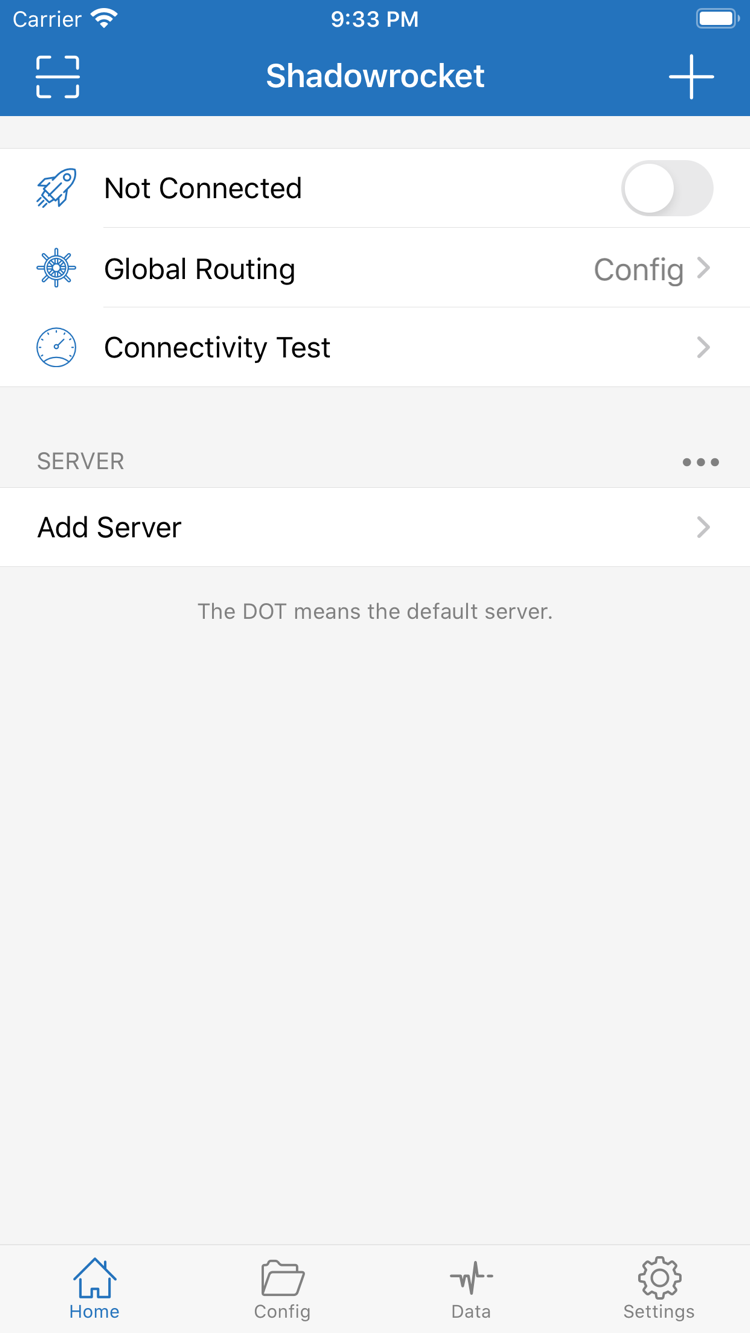
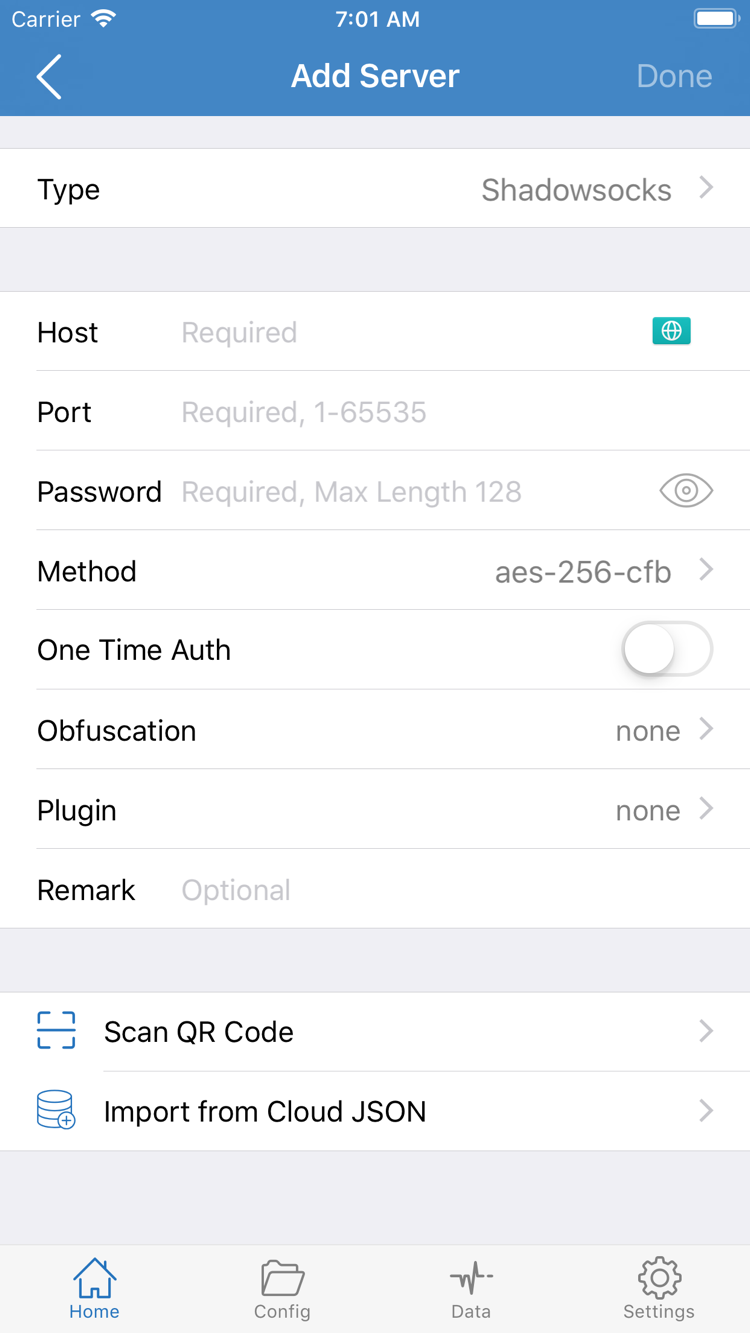
These two images are official App Store screenshots. The Home screen shows Not Connected, Global Routing, Connectivity Test, SERVER, and Add Server. The Add Server screen shows Type, Host, Port, Password, and Method, with Scan QR Code and Import from Cloud JSON at the bottom.
The interface language, visible fields, and layout may vary depending on settings or the selected Type. Use screenshots to locate features, not to judge an app's identity by whether a button appears in exactly the same place. In Add Server, enter your own existing server details; don't copy example values from a screenshot as connection credentials.
Buy, install, and open Shadowrocket on iPhone
Check compatibility before buying, then configure your connection after installation.
On your iPhone, tap the App Store button at the top of this page. After verifying the app, check compatibility and the current price in your local currency. Refer to the App Store listing for system requirements; requirements shown elsewhere may not stay current. Confirm you're using the intended purchase account, then follow the system prompts to pay. The store message and account purchase history confirm the transaction.
After installation, open Shadowrocket from your Home Screen or App Library. Start by checking the connection status and SERVER list on Home. Not having a personal configuration immediately after installation doesn't mean the purchase failed. Getting the app and preparing connection details are separate steps. Import your own existing subscription or server details and select a suitable configuration before testing the connection.
What is VPN configuration permission?
When you connect for the first time, the system may ask for permission to add a VPN configuration. This lets the system register the network configuration required by the client. Confirm that Shadowrocket initiated the request, then authenticate as prompted. This permission isn't part of the purchase process and doesn't provide server details. If you haven't prepared a configuration yet, finish checking the app first and return to this step later.
If the app still shows Not Connected after you tap connect, check that you've selected a working server, filled in all required fields, and completed system authorization. Avoid changing lots of settings just to test the connection. Start with Getting Started and follow the steps for importing details, choosing Global Routing, and testing the connection. If you see a specific error, use Troubleshooting to investigate that symptom.
App updates are also handled through the App Store. Before updating, save your configuration and any essential details. After the update, check that your previous server selection and Config are still there, then test the connection. An app that opens successfully has completed the installation step; that alone doesn't confirm that your server, DNS, or routing rules are configured correctly.
Using one purchase on iPad and other compatible devices
Check the purchase account first, then review compatibility on the device you plan to use.
Shadowrocket works on both iPhone and iPad. After purchasing with the same Apple ID, you can install it on either compatible device. On iPad, check the original purchase account in the App Store, then find the app in your purchased items. Refer to the App Store listing for system requirements and purchase compatibility. Using the same primary Apple ID on both devices doesn't guarantee that the Media & Purchases account also matches.
The iPad's larger screen may change how lists and details are arranged. When following instructions, use labels such as Home, Add Server, Config, and Settings to find features instead of looking for an exact match to a screenshot's coordinates. Check connection status, Global Routing, and server selection separately; the layout may also differ between portrait and landscape.
After installing the app on a second device, don't assume that subscriptions, rules, and server selections from the first device are already set up. Check what's actually there and, if needed, import your own saved details. Verify each item after importing; a restored purchase doesn't confirm that configurations have synced. Network conditions can also differ between devices, so record test results separately.
Mac, Apple TV, and Apple Vision
The compatibility section of the same App Store listing includes Mac, Apple TV, and Apple Vision. If you want to use Shadowrocket on one of these devices, check that same listing rather than looking elsewhere. Refer to the App Store page for system requirements, device compatibility, and whether the purchase is universal. This guide focuses on iPhone and iPad; touchscreen instructions may not apply to other devices.
To see whether family members can use purchase sharing, check the App Store details and your Family Sharing settings. Individual purchases, installation across devices, and family purchase sharing are different situations; don't assume that eligibility in one case applies to every device and account.
Restore purchases after changing or resetting a device
Restore the purchase record first, then set up the app's configuration.
When you get a new device or reinstall the app, sign in with the Apple ID used for the original purchase. Go to App Store → Account → Purchased, find Shadowrocket, and download it again. In most cases, you won't need to pay again. Depending on the system version, this option may appear under Apps or another purchase list. Find the purchase record associated with the original account instead of paying again from search results.
- Check the account currently signed in to the App Store and confirm it matches the account used for the original purchase.
- Open Purchased, search for Shadowrocket, and verify the developer and app ID.
- Tap to download the app again and wait for installation to finish. If prompted to pay, stop and check the purchase record first.
- Open the app, check whether your configuration is still there, then import your own existing subscription or server details.
If the product page still shows a price, that alone doesn't mean you need to buy the app again. Check which account you're using, your order history, whether the app is hidden from Purchased, and whether the current storefront offers the app. Keep the system message and order details, then contact support through your App Store account. Don't try to purchase repeatedly before resolving the issue.
An app purchase record is not a backup of connection details
Restoring the app restores your purchase eligibility; it doesn't guarantee that locally saved servers, rules, groups, or selections will be restored. Before changing devices, organize and safely save your own Config, subscription URL, and required server fields. These details may contain personal access credentials, so don't include them in public screenshots or public support requests.
After importing on a new device, check the server list and current Config, then review Global Routing. Test the connection only after the details are complete and system authorization is in place. If the app is restored but importing fails, troubleshoot the import instead of looking for another purchase restore button. For the import and connection steps, see Getting Started.
Price, one-time purchase, and what the app includes
Keep the app price, connection details, and purchase record separate.
Shadowrocket is a paid commercial app sold as a one-time purchase, with no monthly charge for the client. The US price is $2.99; other storefronts display local currency. The amount shown on the App Store listing and payment confirmation screen is the final price. Check the currency and account storefront before paying. Don't compare amounts in different currencies directly or treat a price shown on a website as proof of the final transaction.
Whether servers appear on Home after purchase depends on your import and configuration status. An empty list doesn't mean your purchase is missing, and a connection timeout doesn't mean you need to pay again. For purchase issues, check your App Store order and account. For configuration issues, check fields such as Type, Host, and Port, the selected server, and how rules are matched.
A subscription's validity, server availability, and the app purchase record are independent of one another. Buying the app doesn't change the status of your existing server. Likewise, expired connection details don't cancel your app purchase. First identify whether the problem occurs in the store, during import, with system authorization, or when connecting; troubleshoot each stage separately.
Updates are delivered through the App Store. Check the product page and in-app information for details; this guide doesn't rely on a particular version or date as a basis for purchase. Before paying, recheck the developer, compatibility, and price on the product page. If you've already purchased the app, start with Purchased in your account to reinstall or restore it.
Download and restore FAQ
Can't find Shadowrocket on the App Store? Check this first.
Shadowrocket isn't available on the mainland China storefront. Check the country or region for the Apple ID used for Media & Purchases, then open the App Store product page here. Store availability depends on the account's country or region; changing your device language does not change the storefront.
Can open the product page but can't download? How to troubleshoot
Note the full App Store message, then check the storefront region, device compatibility, available storage, network connection, and account payment status. If the app shows as purchased but still asks you to pay, verify the original purchase account and purchase history before trying again.
Do I have to pay again after reinstalling or getting a new device?
Sign in with the Apple ID used for the original purchase, find Shadowrocket under your App Store account's purchased items, and download it again. In most cases, you won't need to pay again. The purchase record is separate from the app's configuration, so you'll still need to import your own subscription or server details on the new device.
Can I use the same purchase on iPad?
The iPhone and iPad versions use the same purchase. Sign in with the Apple ID used to buy the app to install it on either compatible device. Check the App Store listing for system requirements and purchase compatibility. The iPad layout may differ from the iPhone layout; use interface labels such as Home, Config, and Settings to find your way around.
Can I install Shadowrocket on Mac, Apple TV, or Apple Vision?
The compatibility section of the same App Store listing includes Mac, Apple TV, and Apple Vision. Check the listing on the device you plan to use. Refer to the App Store page for system requirements, device compatibility, and whether the purchase is universal.
The app opens in English. How do I follow the instructions?
Use the interface labels to navigate: Home shows connection status and servers, Add Server is where you enter existing server details, Config manages configurations, and Settings contains app settings. This manual keeps the English interface labels and explains them in context. Screenshot language and layout alone do not verify an app's authenticity.
Installed the app? Continue with Getting Started, or visit Troubleshooting for help with a specific issue.