The name Shadowrocket and its rocket icon are useful first clues, but before buying, check the developer, official icon, and App ID on the same App Store product page. This guide is for first-time buyers, anyone restoring the app on a new device, or anyone unsure about a search result. Follow the checks in order to see where to find each detail, what cannot verify the app on its own, and how to distinguish app identity from connection issues after purchase.
1. Know what to look for before checking search results
Shadowrocket is a paid client for Apple platforms, available exclusively through the App Store and primarily used on iPhone and iPad. Compatibility with Mac, Apple TV, and Apple Vision, along with system requirements and purchase availability, is as listed on the App Store page. Search rankings, listing text, and price formats may vary by storefront region and page language, so do not buy based only on whichever result appears first in a particular search.
Verifying Shadowrocket means confirming a specific App Store listing—not just an app that looks like a network tool. The name Shadowrocket, an added nickname, or a list of familiar protocols in the description cannot confirm an app's identity. Open the product page first, then check all three details below. If anything does not match, pause and verify that you opened the right listing before buying.
2. Check the App Store product page in four steps
We recommend opening the App Store from this site's official app verification page. If you have already found a candidate in App Store search, open its product page and carry out the same checks. Do not rely on developer text truncated in search results, or judge by the icon alone before opening the full listing.
-
Open the product page
In the App Store, open the product page named Shadowrocket. Make sure you are viewing the app itself, not a search suggestion or other content. All three checks below should be made on this product page.
-
Check the developer
Check the developer listed near the title, then scroll down to the Information section and verify the seller details. The name should be Shadow Launch Technology Limited. Field labels may appear in the language used by the storefront.
-
Compare the official icon
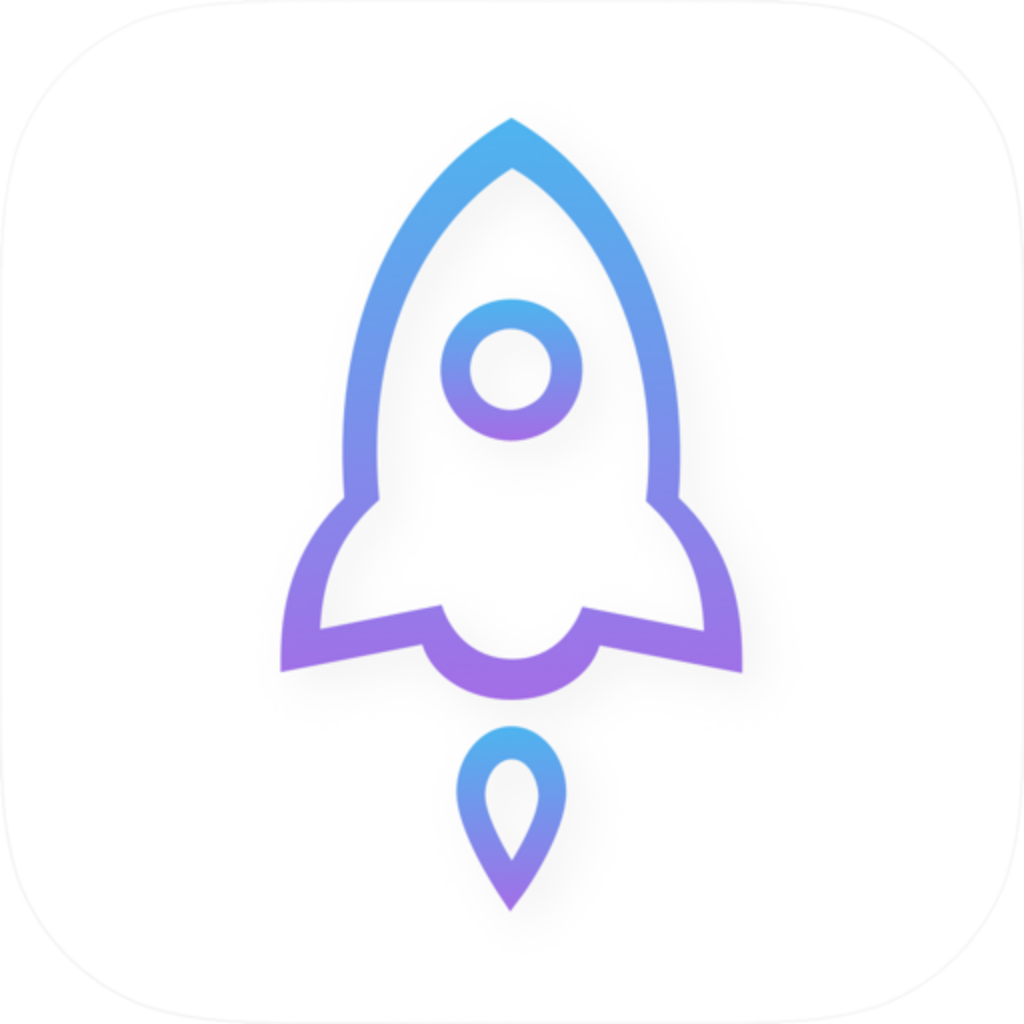
Compare it with the official icon below: a blue-purple outlined rocket on a white background. Check the overall design and linework, not just whether an icon contains a rocket. The icon is only one clue; continue by checking the App ID.
-
Check the App ID
Use the product page's Share option to view or copy the link, then check for
id932747118. The fixed product URL used on this site ishttps://apps.apple.com/us/app/shadowrocket/id932747118.
The App ID is the number after id in the product URL. It is not an order number, receipt number, or device identifier. The link's text may vary by storefront region and display language, so focus on the product ID. Also confirm that the page is in the App Store; seeing the number in the text of an ordinary webpage does not complete the check.
If the full URL is hard to view in the App Store, copy the product link and inspect it in an editable text field. There is no need to visit another website. Do not share purchase receipts, account details, or other personal information with unfamiliar pages claiming to verify an app. Only public product information is needed for these checks.
3. Confirm all three details before deciding
The developer name, official icon, and App ID each serve a different purpose: the name identifies the publisher, the icon helps with visual recognition, and the ID points to a specific App Store listing. They should confirm one another; do not rely on just one. When search results have similar titles, checking the publisher and product URL is more direct than comparing promotional images.
| Check | What to look for | What is not enough on its own |
|---|---|---|
| Product name | Shadowrocket | Only a nickname or similar spelling |
| Developer information | Shadow Launch Technology Limited | The word “official” in the app description |
| Official icon | Matches the official icon shown in this guide | Another rocket design, similar colors, or a similar outline |
| Product link | The App Store product URL contains id932747118 | A number appearing in a webpage title, image, or review |
If details conflict, pause before buying
If the developer or App ID does not match, leave the current listing and return to this site's official app verification page to open the App Store again. Do not let a similar-looking icon outweigh conflicting identity details.
Price, ratings, and review counts are not fixed identifiers. They cannot replace developer information, and a matching price does not prove that two listings are the same app. Before confirming a purchase, check the app name and amount one more time. The amount and currency depend on the App Store storefront for your account; this guide does not specify a universal price.
4. What to check if you cannot find the app, see a price, or switch devices
Not finding the app in search does not mean its identity has changed, and seeing a price after purchase does not necessarily mean you need to pay again. Check your current storefront account, the product listing, and your purchase history separately to avoid mistaking an account issue for an app authenticity issue.
- Can't find the app: Open the fixed product page from this site's official app verification page. If the App Store says it is unavailable in your region, follow the on-page guidance to check your account's storefront region and compatibility. Do not substitute another listing with the same name.
- Switching devices: Find your purchased apps in your App Store account and confirm that you are using the account that originally made the purchase. Section names may vary by system version and interface language.
- Still seeing a price: Check the App ID first, then review your purchase history and original receipt. Do not buy it again just to test before confirming your purchase history. For billing disputes, use the purchase support option in the App Store.
- Can't install: Check the product page's compatibility details, available device storage, and any system prompts. System requirements are as listed on the App Store page; do not rely on fixed numbers from an article instead of the current store listing.
A payment receipt can help confirm what an account purchased, but it should not be shared publicly. You can check the item name and purchase date yourself without giving the full receipt to anyone else. If you purchased a different app by mistake, start the issue resolution process from the relevant App Store purchase record. That purchase does not grant a Shadowrocket client license.
5. After installation, distinguish app identity from connection status
After installation, Home, Config, and Settings are the starting points for exploring the app, but interface labels do not verify the App Store listing. Not Connected on Home means there is no active connection; it does not indicate whether the app is genuine. When you connect for the first time, the system may ask permission to add a VPN configuration. This authorization is needed to establish a system network connection; it is not another client purchase.
If you want to use an existing configuration, first confirm its source and contents, then check Home → Global Routing. The two routing modes below are features within Shadowrocket. They show why connection status cannot be used to verify an app's identity. The recommended mode assumes you already have a working configuration selected.
Config
RecommendedRoutes requests according to the rules and policies in the current configuration. When checking a configuration, confirm the selected file in Config, the rule order, and that any referenced policies exist—do not just check the connection toggle.
Best for: Using a verified configuration for everyday rule-based routing
Direct
Sends traffic directly without routing it through a proxy server. If a destination is unreachable after switching to Direct, the cause may be your current network's direct-connectivity conditions. This does not indicate whether the App Store product is genuine.
Best for: Temporarily checking whether a destination is reachable directly on your current network
Global Routing also includes Proxy and Scene. Proxy sets the routing mode; Scene uses a configured scene. These options change how traffic is handled, not the app's developer, App ID, or purchase history. If you do not have a configuration set up, do not switch between them repeatedly to “verify” the app.
- Keep configuration and purchase separate: Import settings according to your own configuration instructions only if you already have your own service provider and subscription. Buying the client does not automatically provide a server address, authentication details, or other connection settings.
- Keep test results and app identity separate: The result of Home → Connectivity Test reflects connectivity to the test target under current conditions. It does not prove that the product is licensed, nor does it mean every website will be accessible.
- Keep automatic connections and app identity separate: Settings → On Demand controls on-demand connection behavior. If connection attempts resume after you turn the connection off, check the conditions here instead of immediately assuming another app was installed.
6. Final checks before buying
Checking the listing before you buy is more reliable than trying to guess from network behavior after installation. You can review the app identity, price, and device compatibility together on the App Store product page. If anything is still unclear, hold off on purchasing and recheck the public product information.
- The app is named Shadowrocket, the developer is Shadow Launch Technology Limited, and the icon matches the official one.
- The product link points to the App Store and has App ID
932747118. - You have reviewed the current price, compatibility, and system requirements shown in the App Store; these details are as listed on the product page.
- You understand that the client is a one-time purchase, separate from the cost of any service you already have; buying the app does not provide a service plan.
- If restoring the app on a new device, check the original purchase account and purchase history before deciding what to do next.
Once all three identity details match, troubleshoot any connection issues as configuration or network problems: check the current selection and Global Routing in Home, then review Config and the connectivity test results. For first-time setup steps, read this site's Getting Started. To troubleshoot connection issues, visit Troubleshooting. This keeps purchase verification and feature troubleshooting in their proper scope.